
Make it yours: custom schemes, import and export
The 17 built-in schemes are a starting point, not the finish line. This page is about building the one that is yours alone.
The 17 built-in schemes are a starting point, not the finish line. This page is about building the one that is yours alone.
1. Create a scheme
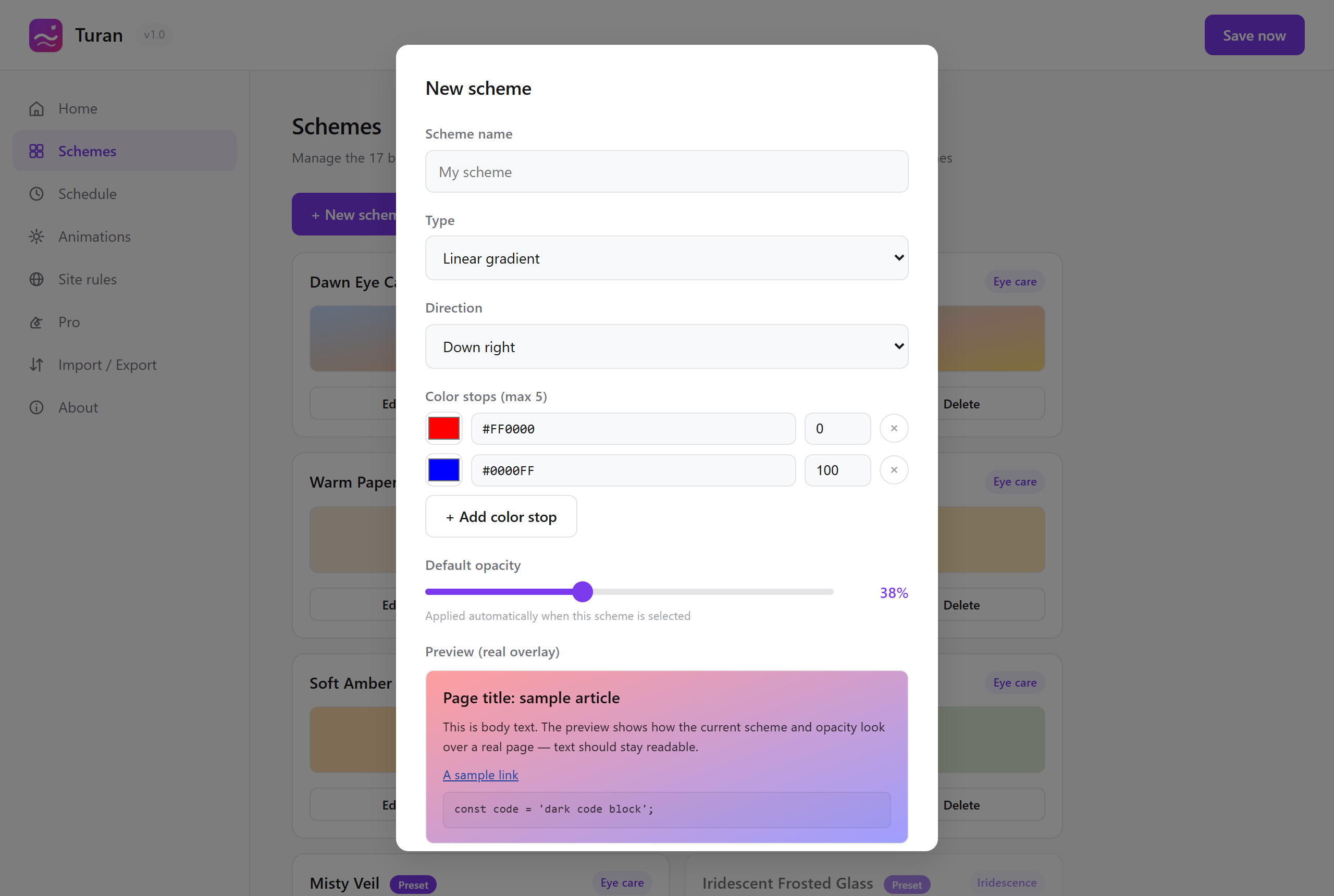
Settings page → Schemes → + New scheme.
The Schemes tab — new scheme
What you can adjust:
| Item | Options |
|---|---|
| Name | Whatever you like |
| Type | Linear gradient / radial gradient / conic gradient / solid colour |
| Direction | Up, up-right, right, down-right, down, down-left, left, up-left (8 in total) |
| Colour stops | Up to 5, each with its own colour and position |
| Opacity | 0–100% |
2. Live preview
The editing dialog has a live preview: change a colour, drag the opacity, and the result appears immediately — no saving, no switching back to the page.
The settings home tab and the animations tab each have a live preview as well, showing the real composition of "scheme + opacity".
3. Start from a preset
Built-in schemes can be edited too: editing one saves it as a new scheme (automatically named "original name copy"), and the source preset is left untouched.
This is deliberate — built-in schemes may be tweaked in later releases, and your edits should not collide with an upgrade.
4. Hiding schemes you do not want
Deleting in the Schemes tab is a soft delete: the scheme disappears from the list but is not really gone.
A collapsible "Hidden presets (N)" section appears at the top, where you can restore them one by one or all at once. Delete by accident and nothing is lost.
5. Import and export
Settings page → Import / export.
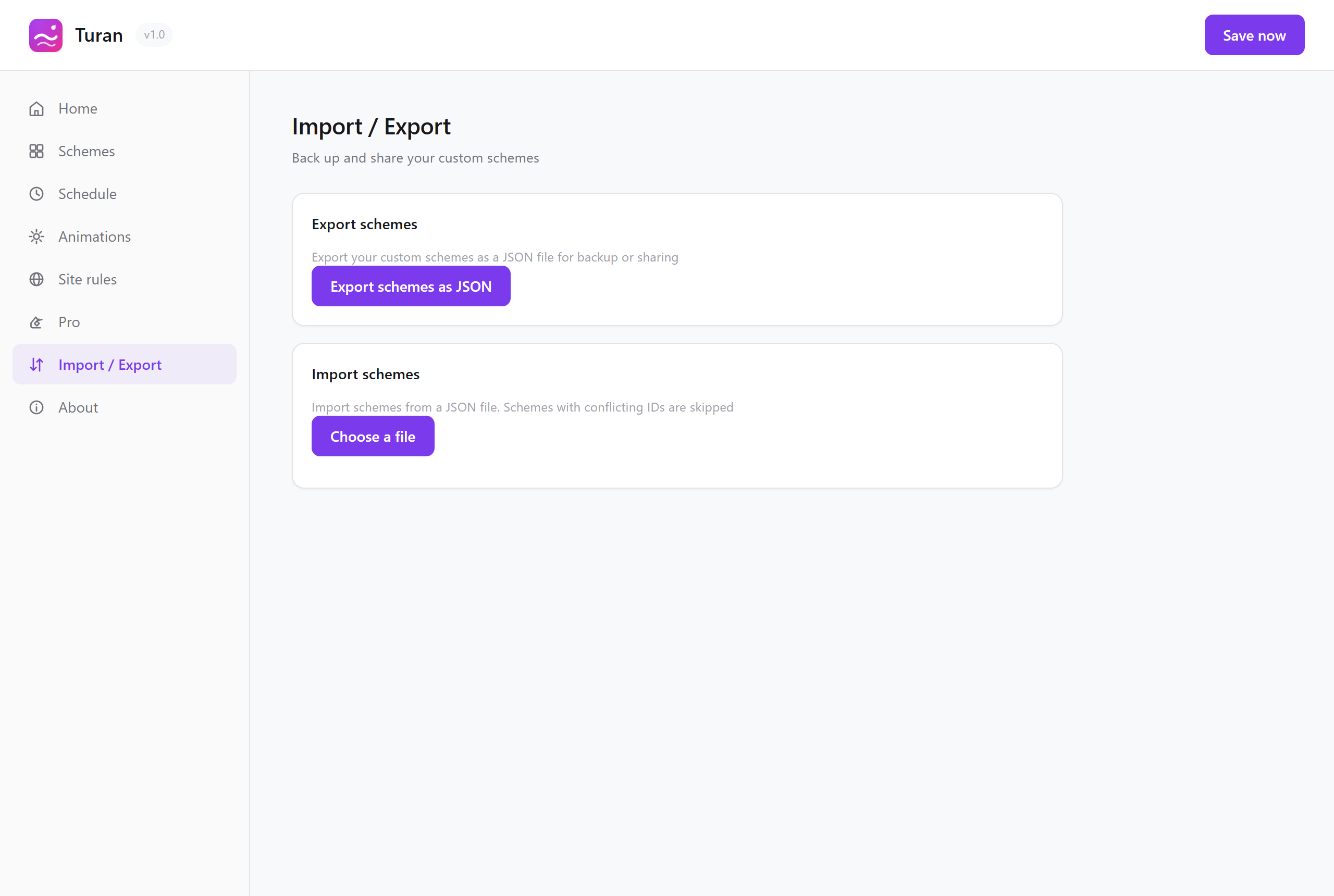 Import and export
| Action | What it does |
|---|---|
| Export | Writes your custom schemes to a JSON file |
| Import | Reads one back from a JSON file |
What it is good for:
- Backup: export before moving to a new computer or reinstalling the browser
- Sharing: send a tuned scheme to a friend
- Restoring: import a file you exported earlier
Note: if an imported scheme ID collides with an existing one, the conflicting entry is skipped — your current schemes are never overwritten.
6. Animated backgrounds are customisable too
Settings page → Animations. Every card has a "Configure" entry that opens a panel split into light mode / dark mode columns.
Per effect you can tune:
- Count: how many particles
- Size: 0.5× – 2×
- Speed: 0.5× – 2×
- Colours: each effect exposes its key colours (grain has none)
Made a mess? Hit Reset to default.
7. Tuning a single site
You do not want to change the global setting, only to have one site use your custom scheme? Bind it with a per-site scheme; every other site is unaffected.
See Automation: schedule + site rules.
One small recipe
Say you want a "late-night code reading" scheme:
- Create a scheme, choose linear gradient, direction right
- Colour stop 1:
#1a2035at 0% - Colour stop 2:
#2d3a52at 100% - Opacity 35%
- Save it and name it "Late-night code"
- Bind it to
github.comunder Site rules
Read next